

How to Login to Outlook through the Staff Links

Last updated: Jun 03, 2026
5589
views

How to Login to District Email from Staff Links
- Go to https://www.pemberton.k12.nj.us/ and click on "Staff Links"
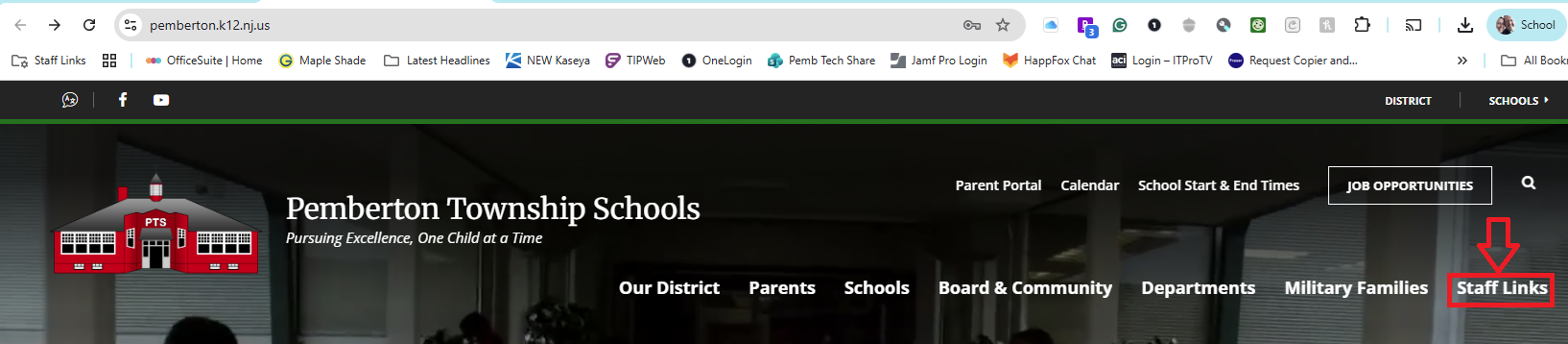
- In the new screen, scroll down and click on the "email access" button.

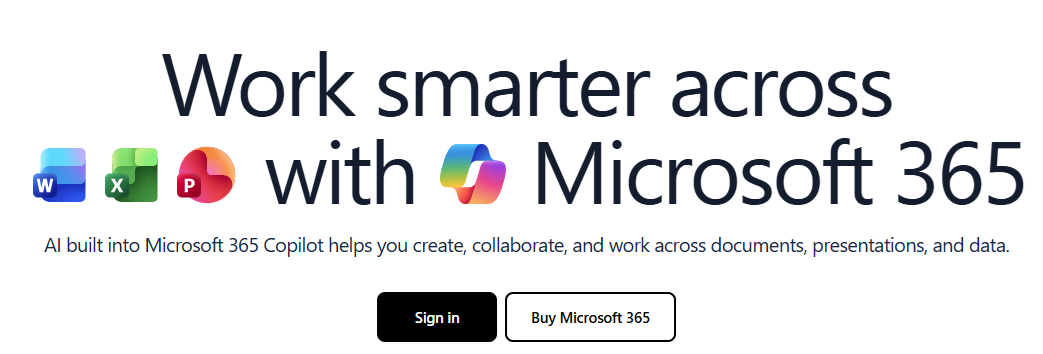
- You will be taken to https://www.office.com. Once there, click on the "Sign in" button in the center of the screen
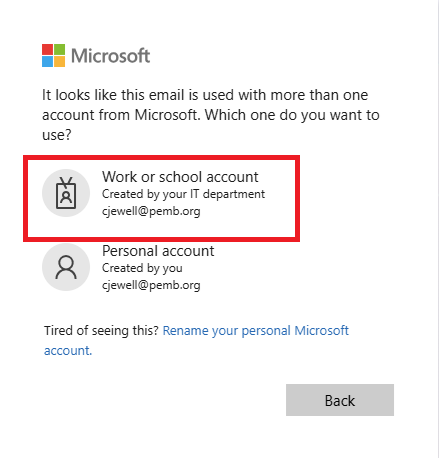
- You may be prompted on the next screen, as shown below. If so, click the area labeled "Work or school account created by your IT department".
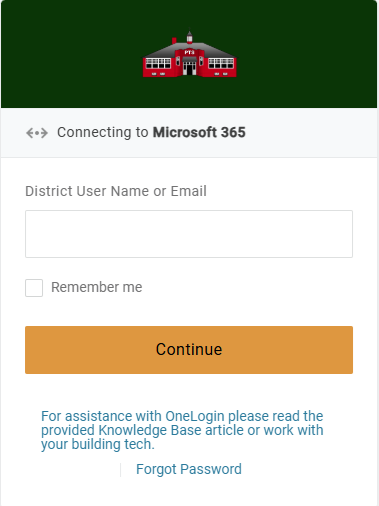
- On the next screen enter your username or email address
- On the next screen, you will be asked to input your password; this is the same password you use to sign in to your classroom computer, office computer, or Chromebook.
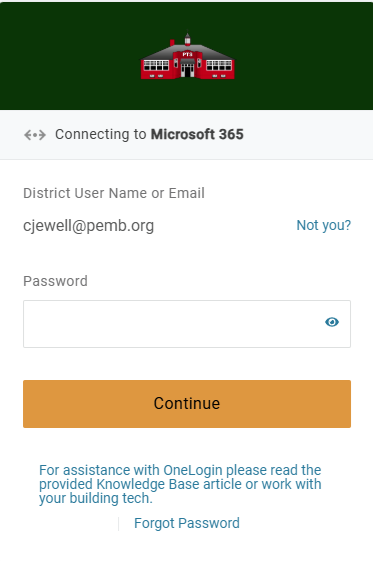
NOTE: If you have forgotten your password, you can click the "Forgot Password" link, and you will be prompted to "Authenticate" your account by entering an Authentication Passcode or answering one of your Security Questions. Once you have authenticated your account, you will be prompted to change your password, which will then be your new password from this point forward for Computer, Email, Google, and Genesis. - On the next screen, you will be asked to "Authenticate" your account either by entering an Authenticator Passcode (shown below) or by answering one of your "Security Questions" that you set previously.
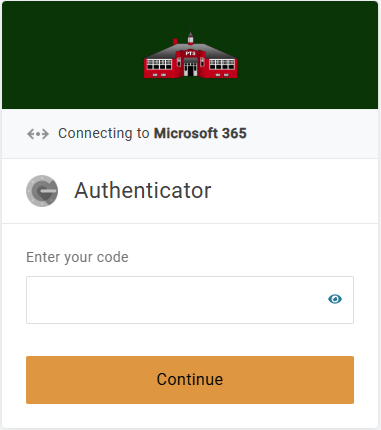
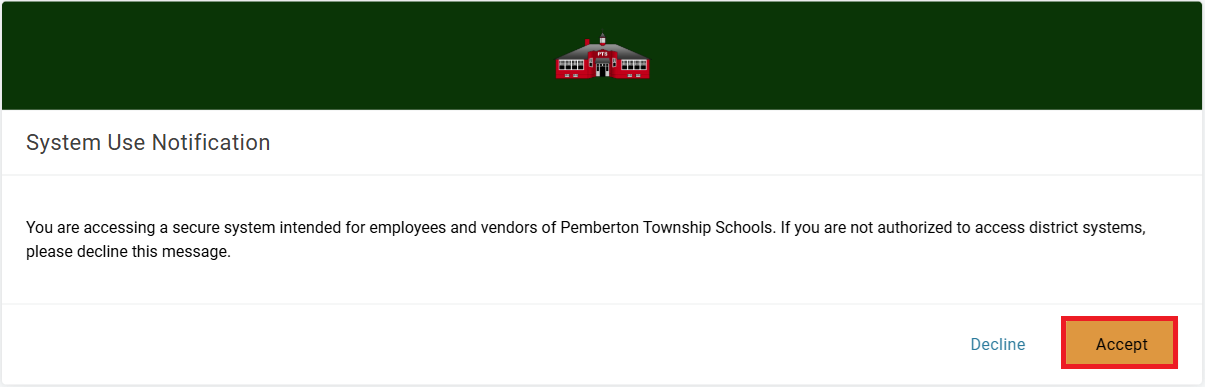
NOTE: If you do not remember your Security Questions answers, open a technology ticket at https://tech.pemb.org/new and request that the questions be cleared. Once the questions are cleared, you will be prompted to set up new ones at your next login. - Once you input the code or answer the security question, you will be asked to accept that you are accessing a secure system intended for Pemberton Township Schools employees.
- In the new window that appears click on the "App Launcher" icon located on the left side of the screen, and then choose Outlook.
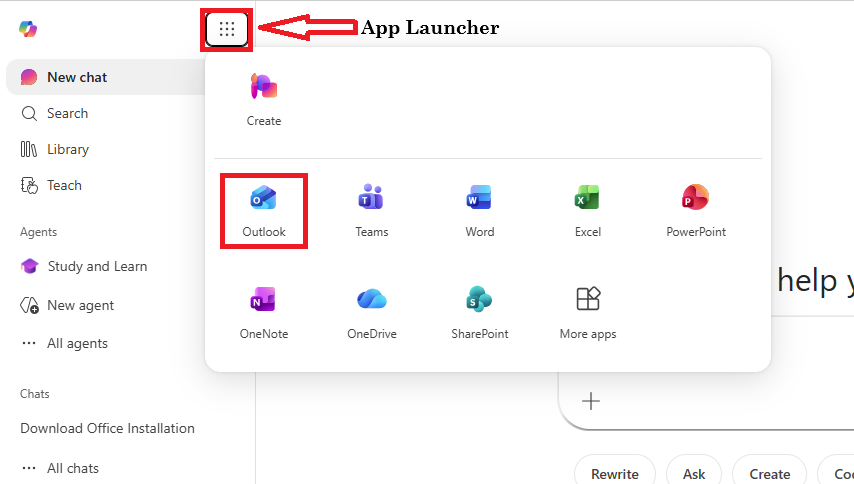
- Once you have selected Outlook from the App Launcher, you will be taken to your email inbox where you can read and send emails .

