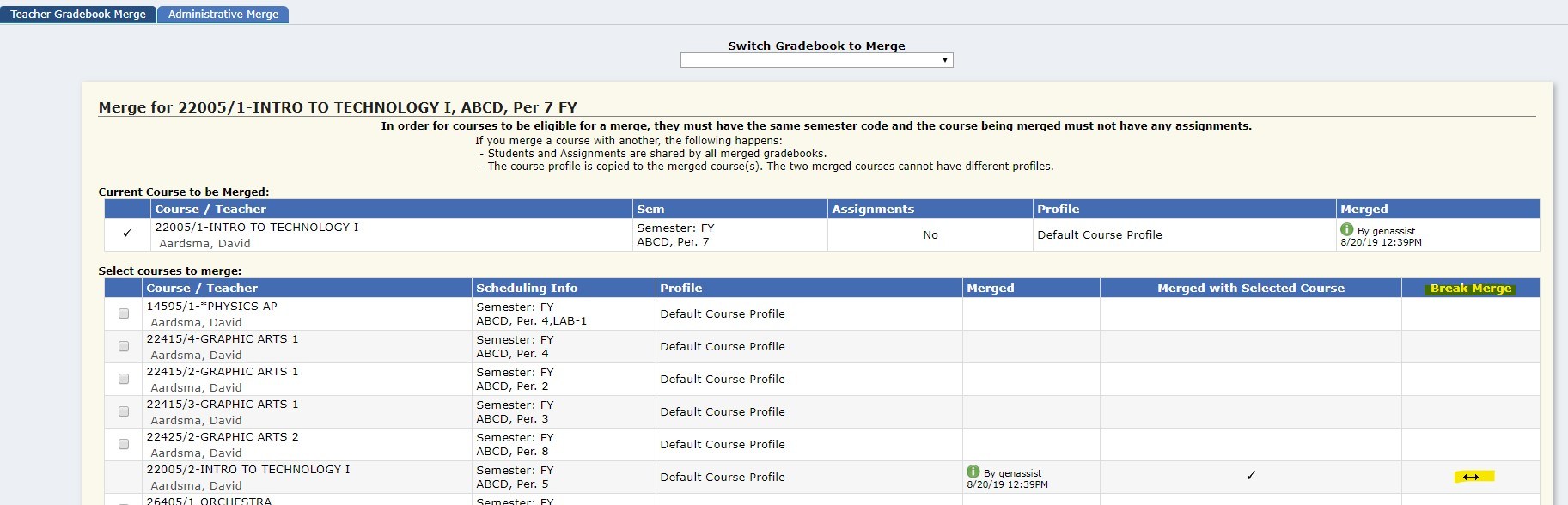
The Gradebook>Merge screen allows you to merge two or more courses into one Gradebook.
If you merge a course with another, the following happens:
- The students in both courses will be merged into one gradebook.
- Students are now shared by both teachers associated with each course.
- The course profile is copied to the merged course(s). The two merged courses can not have different profiles.
In order to be able to merge two courses, the following must be true:
- Both courses must have the same semester code. (Example: Both have to be Full Year courses)
- The course being merged cannot have any assignments.
How to Merge Your Courses
The course to be merged is the one listed under "Current Course to be Merged:".
If this is not the correct course, you can change the course by selecting the correct one from the "Switch Course To Merge" drop down at the top.
Once you have the correct course selected, you will see a listing of courses below it with check boxes to the left of each course.
These courses are gathered from all the gradebooks from the various teachers that you have access to.
If you do not see the course that you wish to merge, then you will either need rights to the teacher who teaches the course, or the Gradebook has not been instantiated for that course.
This means that you would just have to switch the teacher name on the Gradebook Home screen to initialize the gradebooks for that teacher.
In order to do the actual merge, just check the check box next to the course(s) that you wish to merge with.
Once this is done, hit the "Save" button on the bottom of the screen. The courses are now merged.
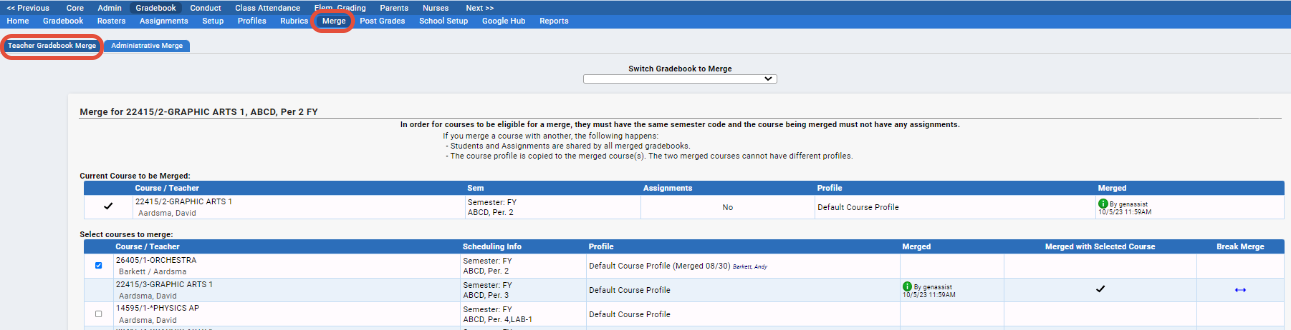
How do I break a gradebook merge?
If there are no assignments in the Gradebooks, you can break the merge via Gradebook>Merge.
There will be a ↔ icon in the "Break Merge" column: